
Join Tom on his adevntures across the Salesforce ecosystem

Get up and running with Field Service Data Capture Forms
Tom Rook - 21 Jun 2026
This is the guide I wish I found when I was trying to configure these frankly fantastic little flows. If you haven’t come across this particular type of flow it’s called a Data Capture flow and is specifically available for use with the Field Service mobile app.
So if you happen to have field service and want a slick UI for your field service workers to capture data in the field then jump into this guide! The UI is great but getting there can be a struggle, I won’t cover actually making a flow, I’ll leave that up to you. Instead we’ll look into getting these things up and running.
Capture information, signatures, images and make DML statements directly in the Field Service App. Fully offline utilising a specific type of screen flow and a special junction object that connects those screen flows to records of Work Orders, Service Appointments, Assets and Custom Objects.
Setting up the org
This knocked me for 6. Unfortunately, Salesforce’s help confused me more than anything else. So I spent ages trawling through my org toggling settings in vain. Many, many YouTube videos were consumed. Instead of that nonsense Follow these checks before building your first flow.
- Enable access to Lightning SDK for Field Service Mobile either:
- Globally: Field Service Settings > Enable Lightning SDK for Field Service Mobile. Every field service mobile user gets this.
- Per User: New Permission Set, System Permissions > Enable Lightning SDK for Field Service Mobile. (Make sure you assign it to your mobile workers!)
- Decide on Sharing for the junction object. - Sharing Rules - Usual Salesforce sharing setup - Sharing Settings and create sharing rules for the Form object (API Name DynamicDataCapture) - Field Service Setup - Enable the forms to be controlled by parent (access to the parent gives access to the form) Setup > Field Service Settings > Sharing Inherit Parent Sharing for Data Capture
- Page Layout Now you will need to add the related list (Forms) to the page layout(s) that you would like the forms to be linked to. Add to both the Page Layout (old school) and the Lightning Record Page(s). Adding to the lightning page will make manual testing easier.
- Forms in the App - Once the above is sorted, for forms to appear in the app either wait (I am not that patient) or sign out and sign back in again. No amount of refreshing or clearing the cache worked for me. (This was just in my sandbox, users in Production didn’t need to do this step)
- Usual Field Service Setup - Also don’t forget usual Field Service gubbins apply, the user trying to access the mobile app must have an active, Technician, Service Resource. Right skills, right territory to actually receive the work order/service appointment and will need a field service mobile licence.
- Object permissions Some standard profiles like System Admin and Standard User get access to this Form Object by default. The rest of your users will need Create and Edit permissions to the object as well.
- Idiot check Final, final, one here make sure the users have run flows as well. You will need the Manage flow permissions to associate a data capture flow to the junction object, although this doesn’t mean a flow that creates that relationships needs to be run in the system context or something silly like that
Nb: These flows do not run at all on desktop, apart from in flow debugging mode where they are quite buggy
Getting in the flow
Like I mentioned, to start with these flows create just like normal screen flows, so let’s just look at the main differences, gotchas and tricks.
First of all make sure you select the correct type of flow, it has be Data Capture only those work with the form junction object.
Once you create your flow it comes with 3 poorly labeled variables ready to go
RecordId - The id of the Form junction record. I must confess I spent about a week using this in a query wondering why it couldn’t find a work order record…
ParentRecordId - The Id of the record that this flow was started from e.g. the Work Order ID
ParentObjectType - The object type of the record that started this flow, eg Work order.
In no particular order here are some of the quirks:
DML - Creates, Updates and Deletes must come at the end of the flow
Choice Resources - Choices must have text outputs
Debug - Debug functionality can be super weird with some elements like signature only running on the mobile device.
Text Template - There is no text template resource so if you are capturing a lot of text it can be hard to format without having a direct field to enter to. Although Discovery Framework Based Data Capture will help you here
Subflows - Can only be other data capture flows and can’t perform DML
Actions - There a limitations here eg. no post to chatter
More Caveats can be found here
Up the Junction
Settings configured, flow created, caveats successfully navigated and now time for your users to run it! If you haven’t heard about this, basically for a user to see your beautiful data capture flow in their field service app you have to connect the Work Order/Work Order Line Item/Service Appointment/Asset/Custom Object to your flow using the Form Junction object. It works as below:
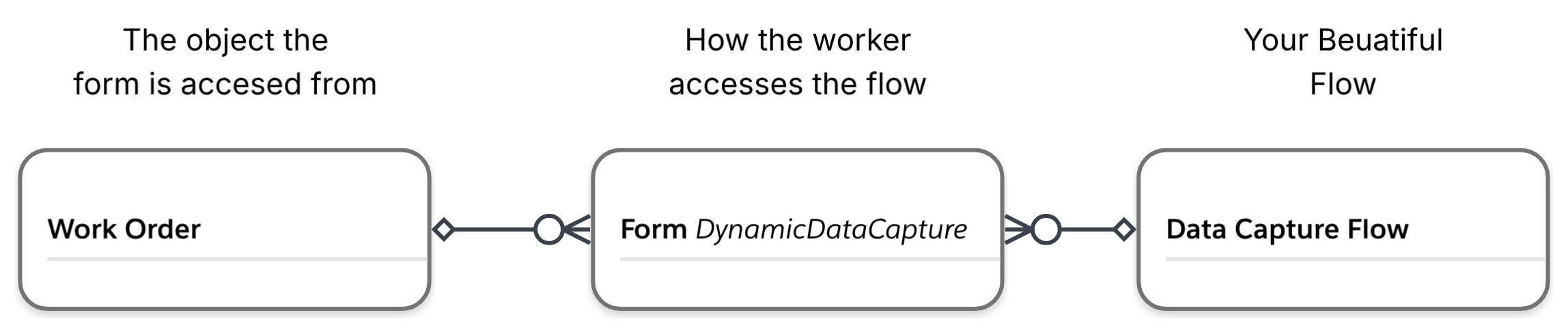
For the users to be able to see the flow a junction object must be created this can be done manually from the related record. This would obviously grow tedious so create a flow to make the junction object where required. Create the DynamicDataCapture records through a flow and populate the below: Parent Record - Add the record you want the form to appear on here eg. Work Order ID Action Definition - Add the API name of the flow Name - Required for creation so add something memorable Status - This is driven by the user’s completion of form itself, defaults to new. Required - Does absolutely nothing Out of the box, if you want the form to be required a separate record triggered flow must be setup. For instance a flow that runs on Work Order Status change and queries if there are any required forms.
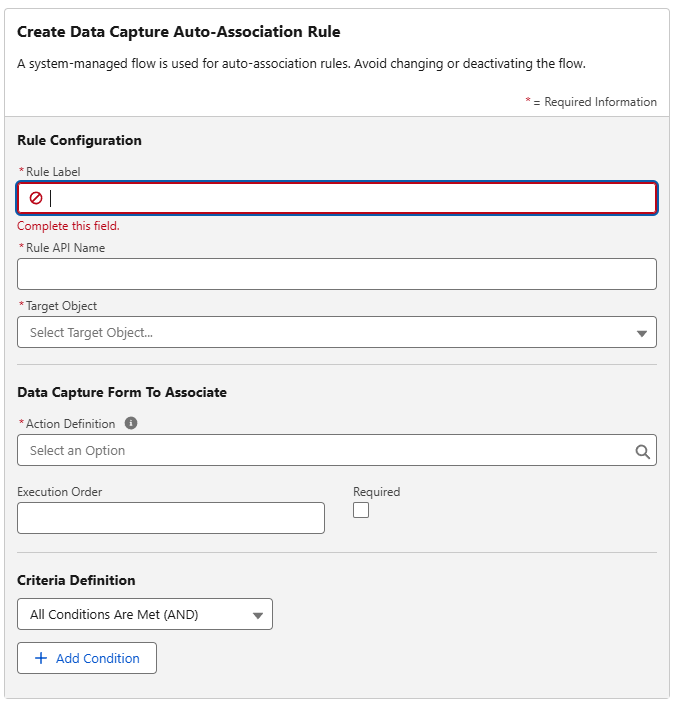
But wait there’s more! In Salesforce Go once Data Capture is on you can create funky little standalone automations just for these association tasks; Data Capture Auto-Association Rules. Stuck to one form at a time and triggering criteria only from the associated objects fields, still gets you up and running fast.
So that’s it, create these lovely little forms give your users the best field service experience and capture some data!
PS This took so long for me to write that there is now a guide about data capture in Salesforce Go, so maybe you didn’t have to read all that? I’ll have to write the next guide on Discovery Framework Based Data Capture with Field Service Mobile App…
tags: FieldServiceLightning - DataCapture - SalesforceFlow - Low-Code